Taking card or M-Pesa payments, via Paystack
This helps you let buyers pay by card or M-Pesa, via Paystack
10 minutes
cart.africa
Builds your shop and this connection. We never hold your money.
You and Paystack
Refunds, reversals, disputes, fees, account checks and payouts.
1 · Open a Paystack account
- No registered business? Start as a Starter Business: an ID or passport, and your own bank or mobile money account.
- Paid out to M-Pesa: Paystack lets you choose it. It asks for a Safaricom number.
- What Paystack asks for: Paystack's own list · business types.
2 · Try it with test keys
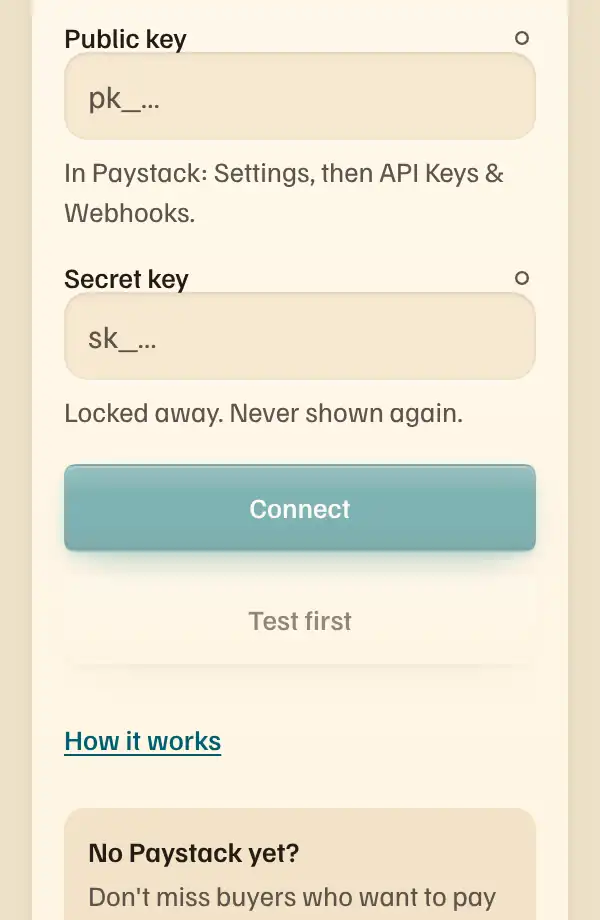
Two keys, then Connect
3 · Make a pretend payment
4 · Go live
Your switches
Show to buyers
Off hides every way. Your keys stay saved.
Card · Apple Pay · M-Pesa prompt
A switch each. One always stays on.
Who pays Paystack's fee
The buyer, on top of the order. Or you, out of what you receive.
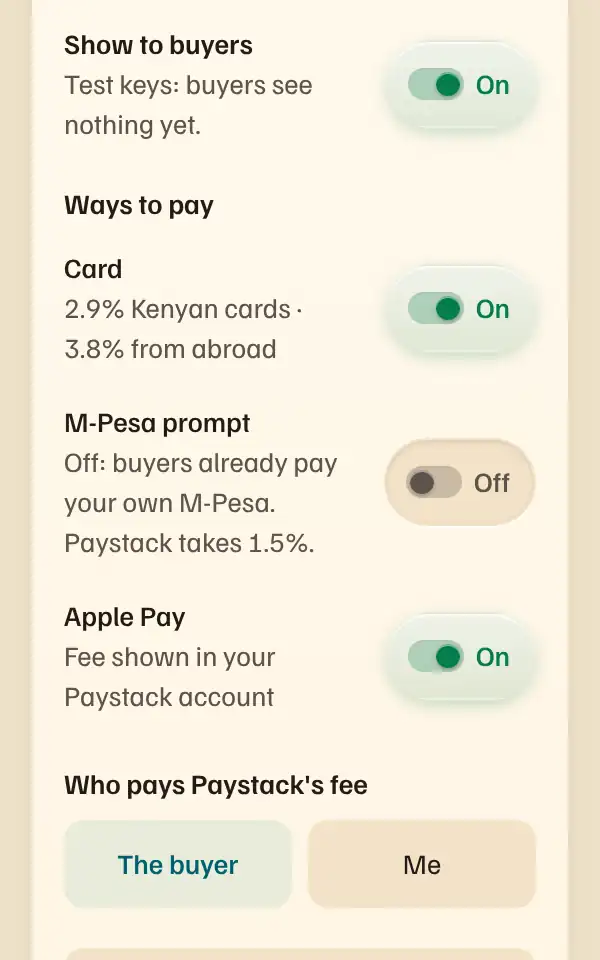
A switch for each way
- M-Pesa prompt is Paystack's, not your own M-Pesa. That money goes to your Paystack account.
- Your own M-Pesa stays as it is. Buyers still see it.
- The fee is Paystack's own. See Paystack pricing. cart.africa takes nothing from a payment.
Refunds and disputes
- You refund in Paystack, never on cart.africa. See Paystack on refunds.
- Paystack says its fee is not returned when you refund.
- An M-Pesa payment: write to Paystack's support. See Pay with M-PESA.
- A dispute: Paystack handles it with you. See Paystack on disputes.
- Payouts: on Paystack's own schedule. See Paystack payouts.
When an order says Online payment to check
A buyer paid and something does not match. The money is in your Paystack account. The order is not marked paid.
- Paid twice: refund the second payment in Paystack.
- Paid after the order was closed: refund it in Paystack, or reopen the order.
- Another amount: check it in Paystack.
- What was owed changed while the buyer was paying: settle the difference with the buyer.
You're done when the Paystack row says Live · On.